¶ Overview
ResidentMaster profiles are primarily created through the Navigator user integration. Children need to be added manually to ResidentMaster because they do not have Navigator user profiles.
¶ Steps to Create a Child Profile:
Step 1: Login to WorldCentral
- Open WorldCentral and, if prompted, enter your login credentials.
Step 2: Navigate to the Resident Management module
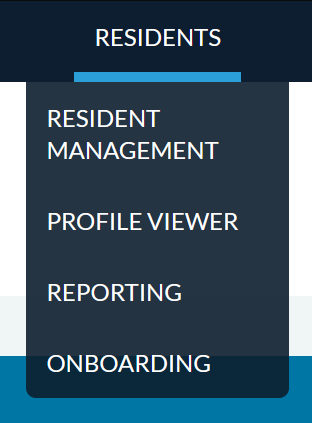
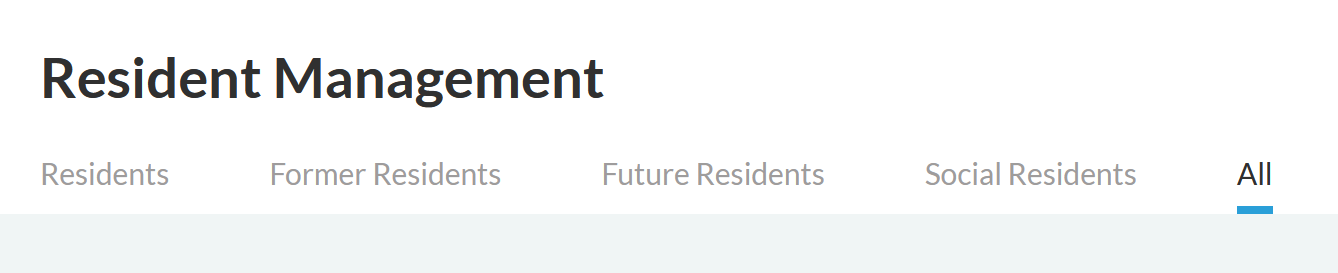
From the main menu, navigate to Residents > Resident Management and click the All tab.
Step 3: Create a New Resident
- Click the NEW RESIDENT button in the top right.

- Under the Person Type dropdown, select “Registered Guest”, and enter the child's full name in the Preferred Name input, and the child's first and last names in each respective name input.

- Please select the current date for the Resident Since date and select the debarkation date for the Resident Until date.
Step 4: Assign Resident Relationships
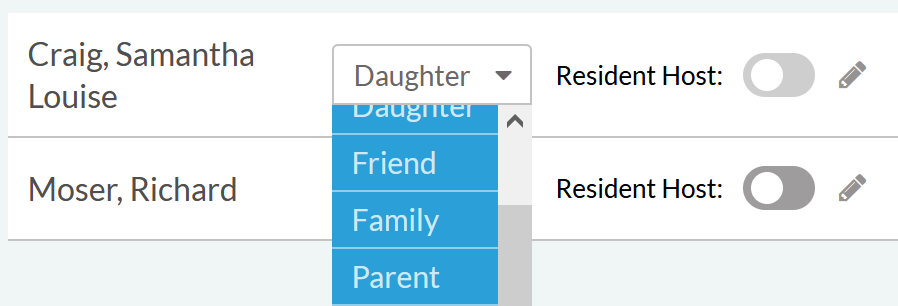
- To link the child to the correct Resident(s), click the Add Relationship button to the right of the Relationships heading.

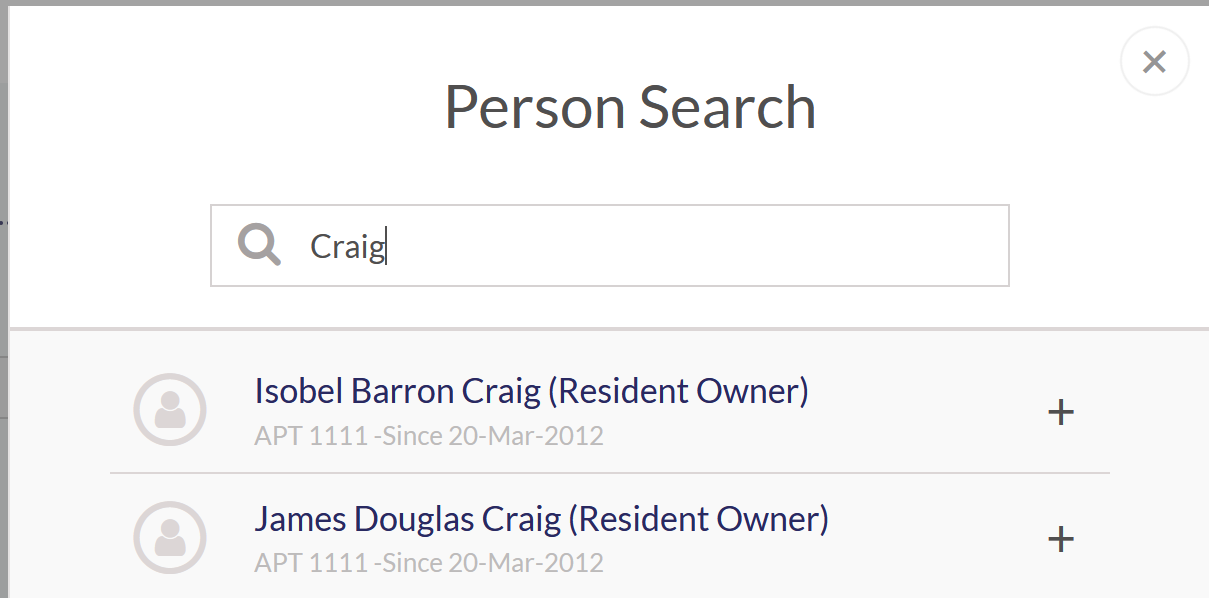
- Search for the Resident(s) by name, and click the + button to add the Relationship. Once complete, click the X in the top right corner of the popup to close it.
- Select the correct relationship type in the dropdown next to the name of the Resident(s) that you just added. Typically, this would either be ‘Family’ or ‘Friend,’ as indicated in Fidelio.
- Click the SAVE button in the top right to update the record.
Step 5: Assign Contact Information
- Click the Contact Info tab.
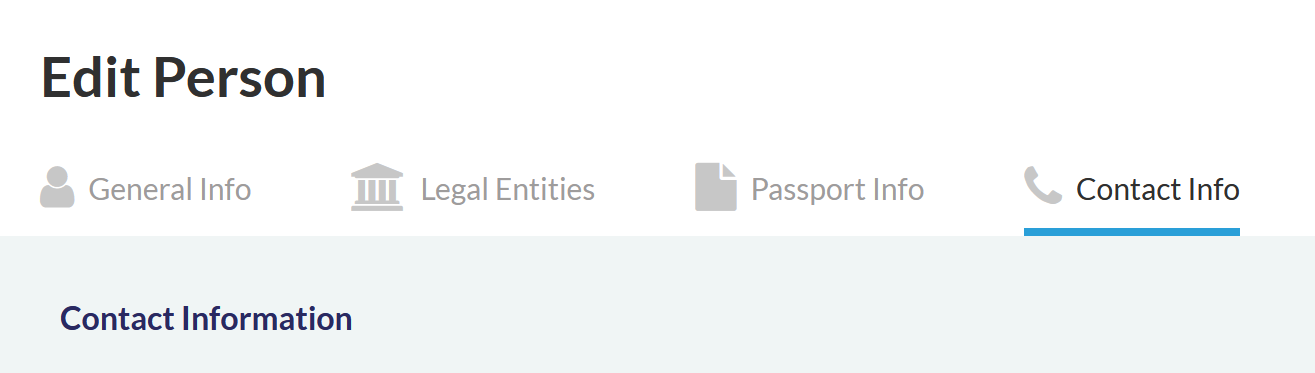
- To create a new contact record, please select IMS Communications from the Contact Type dropdown and enter the desired email address in the Email field.

- Click the Create button to save the new record.
- Click X in the top corner to close the Child’s record.

Step 6: Ensure the Child Appears
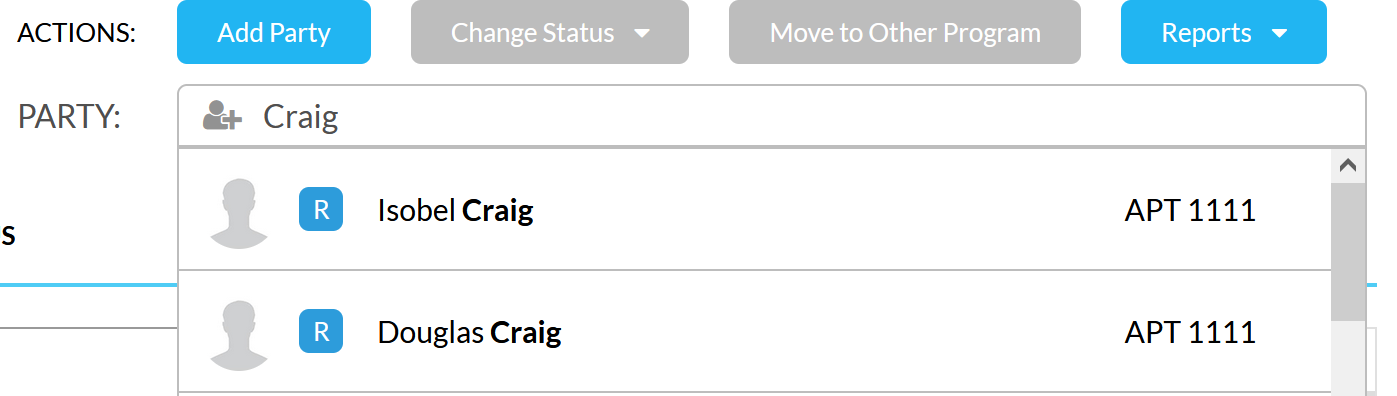
- Open any open program in the Inventory Management system.
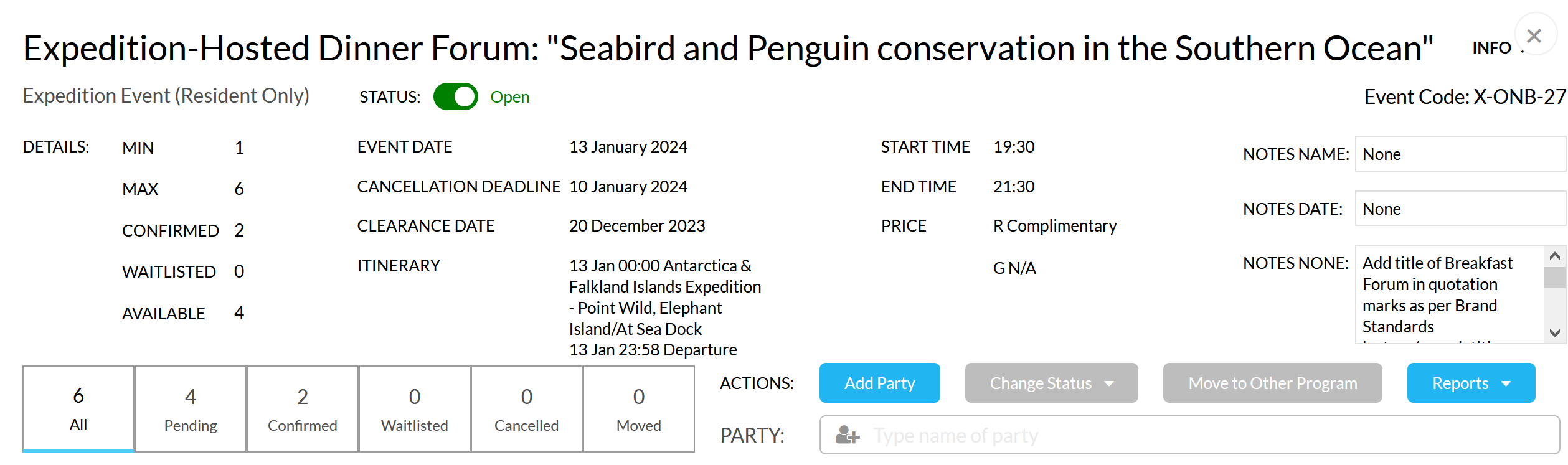
- Search for the child using the Add Party dropdown and verify that the child appears in the dropdown.